
内容管理器 API(Content Manager APIs)
页面摘要: 内容管理器 API 通过
addEditViewSidePanel、addDocumentAction、addDocumentHeaderAction、addBulkAction或addRichTextBlocks向内容管理器添加面板、操作和自定义富文本块。每个 API 都接受带有类型化上下文的组件函数,从而能够精确控制感知文档的 UI 注入。
内容管理器 API 是 管理面板 API 的一部分。它们是 Strapi 插件向 内容管理器 添加内容或选项的一种方式。内容管理器 API 允许你通过添加自己插件的功能来扩展内容管理器,就像你可以通过 注入区 所做的那样。
在深入阅读本页概念之前,请确保你已经:
- 创建了一个 Strapi 插件,
- 阅读并理解了 Admin Panel API 的基础知识。
基本信息
Strapi 5 提供了 4 个内容管理器 API,都可通过 app.getPlugin('content-manager').apis 访问。
所有内容管理器 API 共享相同的 API 形态,并且必须使用组件。
注入区与内容管理器 API 对比
要为内容管理器添加面板、操作或按钮,Content Manager APIs(addDocumentAction、addEditViewSidePanel 等)通常比注入区更健壮、类型更好。当需要将组件插入到 Content Manager APIs 未覆盖的特定 UI 区域时,使用注入区。
Content Manager APIs 和注入区都是自定义管理面板的扩展点,但它们解决不同的需求:
| 需求 | 推荐 API | 原因 |
|---|---|---|
| 在编辑视图侧边区域添加自定义面板 | Content Manager API(addEditViewSidePanel) | 最适合编辑时保持可见的上下文信息或控件。 |
| 在文档操作菜单中添加操作 | Content Manager API(addDocumentAction) | 最适合编辑视图操作菜单中的文档级操作。 |
| 在编辑视图页头添加操作 | Content Manager API(addDocumentHeaderAction) | 最适合文档标题旁的快速、醒目操作。 |
| 为列表视图中选中的条目添加操作 | Content Manager API(addBulkAction) | 最适合一次应用于多个条目的工作流。 |
| 在插件视图的预定义区域添加 UI(本地化视觉自定义) | Injection Zones API(injectComponent) | 最适合针对插件暴露的特定区域。 |
实现细节和最新的 API 签名请参阅 Strapi 代码库中的 content-manager 文件。
API 形态
所有内容管理器 API 的工作方式相同:要使用它们,在你的插件 bootstrap() 函数中进行调用,有两种可能的方式:
使用 TypeScript 时,app.getPlugin() 返回的 apis 属性被类型化为 unknown。在调用这些 API 之前,请将其强制转换为 ContentManagerPlugin['config']['apis']。
-
传入一个包含你要添加内容的数组。例如,以下代码会将 ReleasesPanel 添加到当前 EditViewSidePanels 的末尾:
JavaScript
const apis = app.getPlugin('content-manager').apis;

apis.addEditViewSidePanel([ReleasesPanel]);
TypeScript
import type { ContentManagerPlugin } from '@strapi/content-manager/strapi-admin'; const apis = app.getPlugin('content-manager').apis as ContentManagerPlugin['config']['apis']; apis.addEditViewSidePanel([ReleasesPanel]); -
传入一个接收当前元素并返回新元素的函数。如果你想在列表中的特定位置添加内容(如下面的代码所示),这会很有用:
JavaScript
const apis = app.getPlugin('content-manager').apis;

apis.addEditViewSidePanel((panels) => [SuperImportantPanel, ...panels]);
TypeScript
const apis =
  app.getPlugin('content-manager').apis as ContentManagerPlugin['config']['apis'];

apis.addEditViewSidePanel((panels) => [SuperImportantPanel, ...panels]);
组件
你需要向 API 传递组件,以便向内容管理器添加内容。
组件是一些接收某些属性并返回具有某种形态(取决于函数)的对象的函数。每个组件的返回对象根据你的使用函数而不同,但它们接收相似的属性,具体取决于你使用的是 ListView 还是 EditView API。
这些属性包含关于你正在查看或编辑的文档的重要信息。
ListViewContext
interface ListViewContext {
  /**
   * Will be either 'single-types' | 'collection-types'
   */
  collectionType: string;
  /**
   * The current selected documents in the table
   */
  documents: Document[];
  /**
   * The current content-type's model.
   */
  model: string;
}
EditViewContext
interface EditViewContext {
  /**
   * This will only be null if the content-type
   * does not have draft & publish enabled.
   */
  activeTab: 'draft' | 'published' | null;
  /**
   * Will be either 'single-types' | 'collection-types'
   */
  collectionType: string;
  /**
   * Will be undefined if someone is creating an entry.
   */
  document?: Document;
  /**
   * Will be undefined if someone is creating an entry.
   */
  documentId?: string;
  /**
   * Will be undefined if someone is creating an entry.
   */
  meta?: DocumentMetadata;
  /**
   * The current content-type's model.
   */
  model: string;
}
有关类型和 API 的更多信息,可以在 Strapi 代码库中的 /admin/src/content-manager.ts 文件 中找到。
示例:
将面板添加到侧边栏可以按如下方式完成:
JavaScript
const Panel = ({
  activeTab,
  collectionType,
  document,
  documentId,
  meta,
  model
}) => {
  return {
    title: 'My Panel',
    content: <p>I'm on {activeTab}</p>
  }
}
TypeScript
import type { PanelComponent, PanelComponentProps } from '@strapi/content-manager/strapi-admin';

const Panel: PanelComponent = ({
  activeTab,
  collectionType,
  document,
  documentId,
  meta,
  model
}: PanelComponentProps) => {
  return {
    title: 'My Panel',
    content: <p>I'm on {activeTab}</p>
  }
}
可用的 API
addEditViewSidePanel
使用它向编辑视图的侧边栏添加新的面板,如下面的示例中向 Releases 面板添加内容所示:
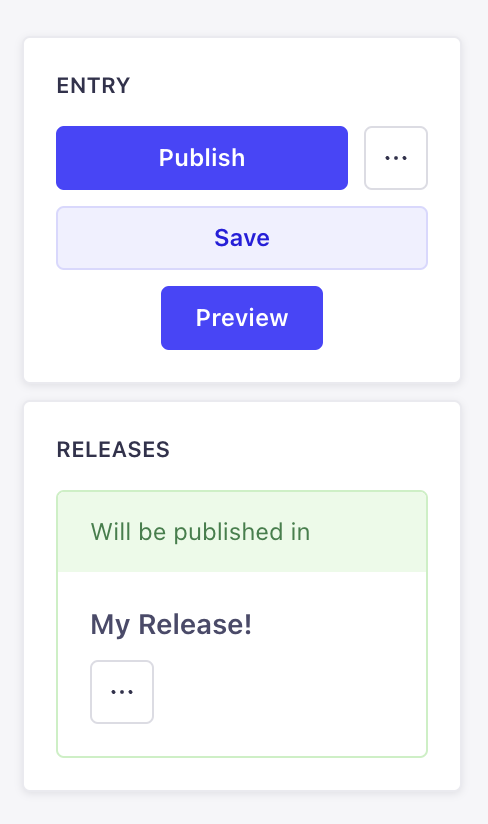
addEditViewSidePanel(panels: DescriptionReducer<PanelComponent> | PanelComponent[])
PanelComponent
PanelComponent 接收 EditViewContext 中所列的属性,并返回一个具有以下形态的对象:
type PanelComponent = (props: PanelComponentProps) => {
  title: string;
  content: React.ReactNode;
};
PanelComponentProps 扩展了 EditViewContext。
addDocumentAction
使用此 API 向内容管理器的编辑视图或列表视图添加更多操作。共有 3 个可用位置:
-
编辑视图的
header: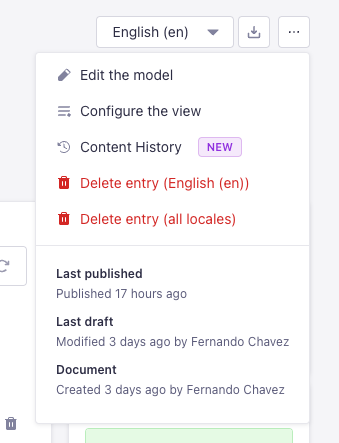
-
编辑视图的
panel: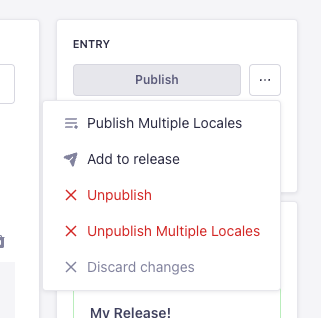
-
列表视图的
table-row: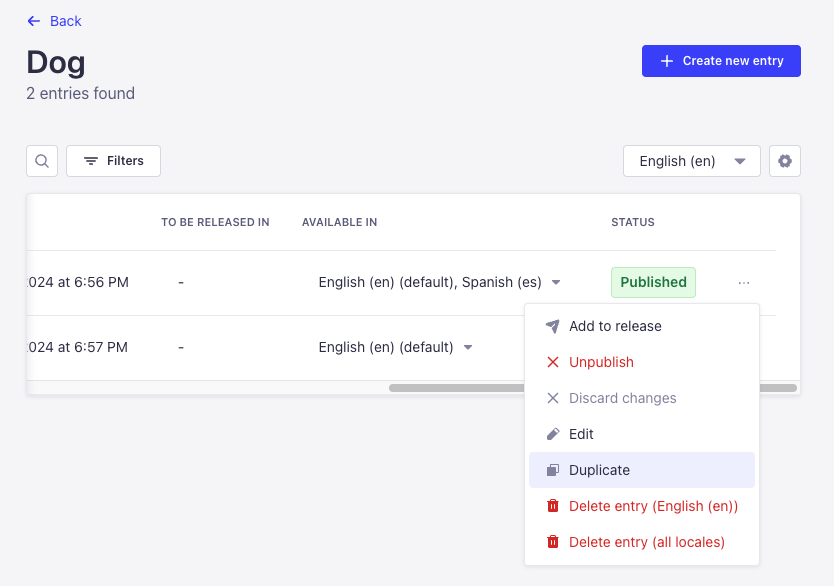
addDocumentAction(actions: DescriptionReducer<DocumentActionComponent> | DocumentActionComponent[])
DocumentActionDescription
该 API 的接口和属性如下所示:
interface DocumentActionDescription {
    label: string;
    onClick?: (event: React.SyntheticEvent) => Promise<boolean | void> | boolean | void;
    icon?: React.ReactNode;
    /**
     * @default false
     */
    disabled?: boolean;
    /**
     * @default 'panel'
     * @description Where the action should be rendered.
     */
    position?: DocumentActionPosition | DocumentActionPosition[];
    dialog?: DialogOptions | NotificationOptions | ModalOptions;
    /**
     * @default 'secondary'
     */
    variant?: ButtonProps['variant'];
    loading?: ButtonProps['loading'];
}

type DocumentActionPosition = 'panel' | 'header' | 'table-row' | 'preview' | 'relation-modal';

interface DialogOptions {
    type: 'dialog';
    title: string;
    content?: React.ReactNode;
    variant?: ButtonProps['variant'];
    onConfirm?: () => void | Promise<void>;
    onCancel?: () => void | Promise<void>;
}
interface NotificationOptions {
    type: 'notification';
    title: string;
    link?: {
        label: string;
        url: string;
        target?: string;
    };
    content?: string;
    onClose?: () => void;
    status?: NotificationConfig['type'];
    timeout?: number;
}
interface ModalOptions {
    type: 'modal';
    title: string;
    content: React.ComponentType<{
        onClose: () => void;
    }> | React.ReactNode;
    footer?: React.ComponentType<{
        onClose: () => void;
    }> | React.ReactNode;
    onClose?: () => void;
}
addDocumentHeaderAction
使用此 API 向内容管理器编辑视图的头部添加更多操作:

addDocumentHeaderAction(actions: DescriptionReducer<HeaderActionComponent> | HeaderActionComponent[])
HeaderActionDescription
该 API 的接口和属性如下所示:
interface HeaderActionDescription {
  disabled?: boolean;
  label: string;
  icon?: React.ReactNode;
  type?: 'icon' | 'default';
  onClick?: (event: React.SyntheticEvent) => Promise<boolean | void> | boolean | void;
  dialog?: DialogOptions;
  options?: Array<{
    disabled?: boolean;
    label: string;
    startIcon?: React.ReactNode;
    textValue?: string;
    value: string;
  }>;
  onSelect?: (value: string) => void;
  value?: string;
}

interface DialogOptions {
  type: 'dialog';
  title: string;
  content?: React.ReactNode;
  footer?: React.ReactNode;
}
addBulkAction
使用此 API 添加在内容管理器列表视图中选中条目时显示的按钮,例如 “Add to Release” 按钮:

addBulkAction(actions: DescriptionReducer<BulkActionComponent> | BulkActionComponent[])
BulkActionDescription
该 API 的接口和属性如下所示:
interface BulkActionDescription {
  dialog?: DialogOptions | NotificationOptions | ModalOptions;
  disabled?: boolean;
  icon?: React.ReactNode;
  label: string;
  onClick?: (event: React.SyntheticEvent) => void;
  /**
   * @default 'default'
   */
  type?: 'icon' | 'default';
  /**
   * @default 'secondary'
   */
  variant?: ButtonProps['variant'];
}
addRichTextBlocks
使用此 API 在 Blocks 富文本字段中注册自定义块类型。自定义块会与内置块一起出现在工具栏下拉菜单中。
addRichTextBlocks 必须在 register() 生命周期函数中调用,而不是 bootstrap()。编辑器会在 register 期间初始化其 Slate 实例,因此块必须在那时可用。
addRichTextBlocks(blocks: RichTextBlocksStore | ((currentBlocks: RichTextBlocksStore) => RichTextBlocksStore))
该 API 接受 2 种调用签名:
-
传入一个 对象:所提供的块会与现有块存储合并。
JavaScript
export default {
  register(app) {
    app.getPlugin('content-manager').apis.addRichTextBlocks({
      callout: {
        renderElement: (props) => <Callout {...props.attributes}>{props.children}</Callout>,
        icon: Information,
        label: { id: 'my-plugin.blocks.callout', defaultMessage: 'Callout' },
        matchNode: (node) => node.type === 'callout',
        isInBlocksSelector: true,
        handleConvert(editor) { /* use Slate Transforms to set node type */ },
        snippets: [':::callout'],
      },
    });
  },
};
TypeScript
import type { ContentManagerPlugin } from '@strapi/content-manager/strapi-admin'; export default { register(app) { const apis = app.getPlugin('content-manager').apis as ContentManagerPlugin['config']['apis']; apis.addRichTextBlocks({ callout: { renderElement: (props) => <Callout {...props.attributes}>{props.children}</Callout>, icon: Information, label: { id: 'my-plugin.blocks.callout', defaultMessage: 'Callout' }, matchNode: (node) => node.type === 'callout', isInBlocksSelector: true, handleConvert(editor) { /* use Slate Transforms to set node type */ }, snippets: [':::callout'], }, }); }, }; -
传入一个 函数:该函数接收当前的块存储,并且必须返回更新后的存储。使用这种形式可以移除或替换内置块。
JavaScript
export default {
  register(app) {
    app.getPlugin('content-manager').apis.addRichTextBlocks((currentBlocks) => {
      // Remove the built-in code block
      const { code: _removed, ...rest } = currentBlocks;
      return rest;
    });
  },
};
TypeScript
import type {
  ContentManagerPlugin,
  RichTextBlocksStore,
} from '@strapi/content-manager/strapi-admin';

export default {
  register(app) {
    const apis =
      app.getPlugin('content-manager').apis as ContentManagerPlugin['config']['apis'];

    apis.addRichTextBlocks((currentBlocks: RichTextBlocksStore) => {
      const { code: _removed, ...rest } = currentBlocks;
      return rest;
    });
  },
};
块定义
块对象中的每一项都是一个块定义,具有以下属性:
| Property | Required | Type | Description |
|---|---|---|---|
renderElement | Yes | React.FC | React 渲染函数。在根元素上展开 props.attributes 并渲染 props.children。 |
matchNode | Yes | (node: Node) => boolean | 如果给定的 Slate 节点属于此块类型,则返回 true。 |
isInBlocksSelector | No | boolean | 设为 true 可在工具栏下拉菜单中显示该块。默认为 false。 |
icon | No | React.ComponentType | 在工具栏下拉菜单中显示的图标组件。当 isInBlocksSelector 为 true 时必填。 |
label | No | { id: string, defaultMessage: string } | 在工具栏下拉菜单中显示的 MessageDescriptor。当 isInBlocksSelector 为 true 时必填。 |
handleConvert | No | (editor: Editor) => void \| (() => React.JSX.Element) | 当用户从下拉菜单中选择此块时调用。使用 Slate 的 Transforms 设置节点类型。可以返回一个 React 元素工厂来渲染模态框。 |
handleEnterKey | No | (editor: Editor) => void | 此块内部的自定义 Enter 键行为。 |
handleBackspaceKey | No | (editor: Editor, event: React.KeyboardEvent<HTMLElement>) => void | 自定义 Backspace 键行为。 |
handleTab | No | (editor: Editor) => void | 自定义 Tab 键行为(例如缩进)。 |
handleShiftTab | No | (editor: Editor) => void | 自定义 Shift+Tab 键行为。 |
snippets | No | string[] | 输入这些字符串之一后跟空格会触发向此块类型的转换。 |
dragHandleTopMargin | No | string | 调整拖拽重排手柄图标的垂直位置。 |
plugin | No | (editor: Editor) => Editor | 在编辑器实例创建时注册的 Slate 插件。用于自定义规范化器或 Slate 级别的行为。 |
isDraggable | No | (element: Element) => boolean | 返回给定元素是否可拖拽的函数。默认为 () => true。 |
内置块键包括:paragraph、heading-one、heading-two、heading-three、heading-four、heading-five、heading-six、list-ordered、list-unordered、image、quote、code、link、list-item。
按键处理示例
每个按键处理程序都接收 Slate 的 editor 实例。使用 Slate 的 Transforms API 修改文档:
callout: {
  // ...
  handleEnterKey(editor) {
    // Exit the block on Enter and insert a new paragraph below
    Transforms.insertNodes(editor, { type: 'paragraph', children: [{ text: '' }] });
  },
  handleBackspaceKey(editor, event) {
    // Convert back to paragraph when backspacing in an empty callout
    Transforms.setNodes(editor, { type: 'paragraph' });
  },
  handleTab(editor) {
    // Increase indentation level on Tab
    Transforms.setNodes(editor, { indent: (editor.selection ? 1 : 0) });
  },
  handleShiftTab(editor) {
    // Decrease indentation level on Shift+Tab
    Transforms.setNodes(editor, { indent: 0 });
  },
},
有关类型的更多信息,可以在 Strapi 代码库中的 BlocksEditor.tsx 文件 中找到。